
A few months ago, a friend with no musical background sent me a voice note. “Listen to this,” she said. “How to Create a Song Using AI for Free: Ultimate Beginner’s Guide.” She had created a two-minute pop song, featuring an amazing, realistic guitar performance and lyrics about her morning commute—all during her lunch break, at no cost.
TABLE OF CONTENTS HERE
If you’ve been curious about how to create a song using AI for free, this guide is going to walk you through the whole thing, start to finish. The truth is, making music used to require things most of us don’t have: years of practice, expensive gear, or a producer friend who owes you a favor. That’s no longer the case, and honestly, it happened faster than any of us expected.
Suno AI is the tool my friend used and the one I’ve been obsessed with ever since. No music knowledge required. No downloads. No credit card.
Just an idea, a prompt box, and about 30 seconds of patience.
Why AI Music Is Booming Right Now
Why AI Music Is Booming Right Now
Not long ago, “AI music” meant weird robotic noises or those janky MIDI files from 2003. Nobody was taking it seriously.
Then something shifted—quietly at first, then all at once. The same wave of AI that changed writing and image-making hit music, and this time it really hit. Suddenly, people were sharing songs online that sounded like they had been produced in a proper studio. Comments were full of “Wait, a computer made this? and “I literally have this on repeat.”
What makes it different now isn’t just the technology. It’s that the barrier basically disappeared. You used to need years of practice, a decent microphone, some software you’d spend a weekend learning, and ideally a musician friend who could fill in the gaps. Now you need a browser and an idea.
That’s genuinely new. And it’s why so many people — from teenagers to retirees, from content creators to teachers — are quietly making music for the first time in their lives.
The tool at the center of all this? Suno AI. It’s free, it runs in your browser, and it’s what we’ll be using throughout this guide.
What’s Perfect for Beginners:
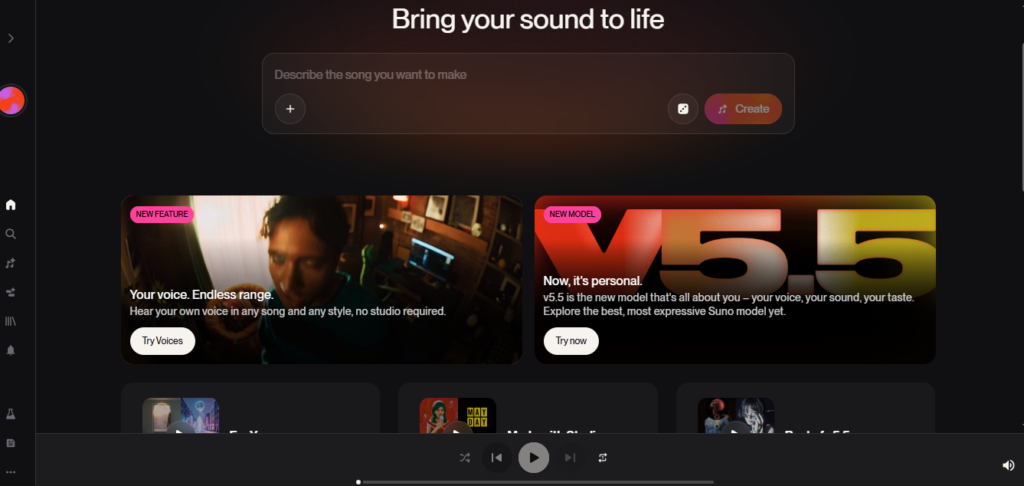
Suno AI is a free, web-based platform that turns your text prompt into fully produced songs. You describe what you want, hit Create, and in about 30 seconds, you have two complete song versions to listen to and choose from.
What Suno AI Can Do
- Generate songs with real, sung vocals—not just background feelings like in studio music.
- Handle virtually every genre: pop, hip-hop, country, R&B, jazz, lo-fi, rock, classical, metal, electronic, and dozens more.
- Write your own lyrics based on your topic (or use the lyrics you write yourself, or use AI for lyrics like ChatGPT, etc.)
- Produce songs with proper structure: verse, chorus, bridge, and outro.
- Let you complete your song remix, download your song, get daily bonus credits, and enjoy free credits.
Suno AI Free Plan—What You Actually Get: How to Create a Song Using AI
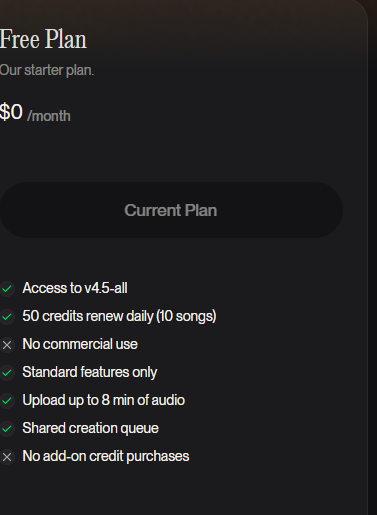
| Daily Credits | 50 (resets every 24 hours) |
| Songs per day | ~10 songs |
| Audio download | ✅ MP3 included |
| Video download | ✅ MP4 with visualizer |
| Commercial use | ❌ Personal use only |
| Credit card needed | ❌ None required |
The free plan is very good. For a beginner who wants to explore and create, 10 songs a day is more than enough.
Step 1: Sign Up for Your Free Suno Account
The complete procedure takes roughly 90 seconds.
How to Create Your Account
1. Open your browser and go to suno.com
2. Click “Sign Up” in the top-right corner of the homepage
3. Choose an easy way to sign in—Suno supports the following:
- Google (fastest — one click, no forms)
- Discord
- Microsoft
4. Approve the permissions prompt and accept the Terms of Service
5. You will land directly on the Create page — no setup wizard, no tutorial to skip. You’re ready to make music.
What You’ll See After Logging In
The Suno interface has two main areas:
- Left sidebar
The Create panel. Welcome to your studio. Here is everything you need to produce a song. - Main area
- Your music library and a communal feed of songs created by other people. Good for inspiration
Your remaining credits sit in the bottom-left corner of the screen. Keep an eye on them, but don’t stress—they refresh every single day.
Step 2: Understanding the Prompt Box — Simple Mode vs. Custom Mode
This is the heart of Suno. The prompt box is where you tell the AI what song you want to create. And there are two very different ways to use it, depending on how much creative control you want.
Simple Mode — Let the AI Do Everything
Simple mode is the default. It’s perfect if you’re new, experimenting, or want to see what Suno can come up with on its own.
In Simple mode, you type a single description of your song. And Suno handles 100% of the rest: writing lyrics, choosing instruments, picking a vocal style, building a structure, and performing it.
How to use Simple mode:
- Make sure the Custom Mode toggle is OFF (it’s at the top of the left panel)
- Click inside the “Song Description” box.
- Type your song idea in plain, natural language.
- If you want music only, turn “Instrumental” ON – leave it OFF for vocals.
- Press “Create”
- Wait 20–40 seconds for your two versions to appear.
Example Simple mode prompts that work really well:
“A cheerful pop song about summer road trips with friends, female vocals, upbeat and fun”
“Emotional acoustic folk song about a long-distance relationship, soft male voice, gentle guitar.”
“Aggressive trap hip-hop about grinding for your goals, a confident rapper, and heavy 808s.”
“Peaceful lo-fi instrumental for studying, no vocals, rainy-day vibes.”
The more descriptive your prompt, the closer the output will be to what you imagined. Include the genre, mood, vocal style, topic, and energy level for the best results.
Custom Mode — Take Full Creative Control
Once you’ve tried Simple mode a few times, Custom mode is where the real fun begins. It splits your input into three separate fields, giving you precise control over every major element of the song.
Turn it on:
Click the “Custom Mode” toggle at the top of the Create panel—it lights up purple when active.
Custom Mode Field #1: Lyrics
This is where you write (or describe) your song’s words.
You have two options here:
Option A — Write your own lyrics: Type out your lyrics line by line. The most powerful technique is using structure tags — labels in square brackets that tell Suno what role each section plays.
The essential structure tags:
| [Verse 1] | Opening section—sets the scene or tells the story |
| [Pre-Chorus] | Builds tension leading into the chorus |
| [Chorus] | The main hook—the part listeners remember |
| [Verse 2] | Continues the story with new lines |
| [Bridge] | A contrasting section, often more emotional |
| [Outro] | Closing statement or fade |
Example lyrics with structure tags:
[Verse 1] Walking through the city lights alone Every street I turn down feels like home. Chasing something I can't quite define Looking for a moment that is mine. [Chorus] But I'm still standing, still breathing. Still finding reasons to believe in The version of me that I'm becoming is still standing, still running. [Verse 2] People said I'd never make it here. Traded all my comfort for the fear Every stumble taught me how to rise. Now I see the world through different eyes. [Bridge] Maybe the journey was the point all along. Maybe getting lost is how you find where you belong.
Option B — Let Suno write the lyrics: Don’t want to write? Just describe what you want in the Lyrics box instead:
“Write uplifting lyrics about starting over after a tough year, hopeful and warm tone, 2 verses and a chorus.”
Suno will generate the words for you and then create the song around them.
Custom Mode Field #2: Style of Music
This field controls the sound — completely separate from the lyrics. Describe the musical elements you want as specifically as possible.
Strong style descriptions:
“Upbeat indie pop, acoustic guitar, handclaps, warm female vocals, bright and energetic.”
“Dark moody R&B; slow tempo; reverb-heavy synths; breathy female vocals; minimal drums.”
“Classic rock anthem, distorted electric guitar, powerful drums, raw male vocals, stadium energy.”
“Cinematic orchestral, sweeping strings, piano, no vocals, deeply emotional.”
Useful style keywords to mix and match:
Genres: pop · indie · R&B · soul · jazz · blues · folk · country · rock · metal · punk · trap · drill · lo-fi · electronic · reggae · bossa nova · classical · cinematic
Vocals: male vocals · female vocals · duet · choir · raspy · breathy · powerful · smooth · falsetto · deep baritone · spoken word
Instruments: piano · acoustic guitar · electric guitar · bass · drums · strings · synths · trumpet · saxophone · 808s · ukulele · violin
Tempo/Feel: fast · slow · mid-tempo · driving · laid-back · anthemic · intimate · atmospheric
Custom Mode Field #3: Title
Give your song a name. This isn’t just for labeling it in your library—the title gives Suno a clear anchor for the song’s central theme, helping everything feel more cohesive.
Step 3: Generating Lyrics and Choosing Your Music Style: How to Create a Song Using AI
Let’s put it all together with a real, walkthrough example. We’re going to create a motivational pop song called “Unbreakable” step by step.
Step 3a: Define Your Concept (60 Seconds)
Before typing anything, answer these four questions:
- Topic: Overcoming self-doubt and pushing forward
- Mood: Empowering, uplifting, slightly emotional
- Genre: Pop with a cinematic edge
- Audience: Young adults going through a tough time
Step 3b: Write Your Lyrics
[Verse 1] They said I wasn't built for this. That I'd fold under the weight of it But every scar has made me strong. I've known the dark; I've held on long. [Chorus] I'm unbreakable, unbreakable. No storm can shake what I've become. Unbreakable, unbreakable This fight isn't over; I've just begun. [Verse 2] I've cried alone at 3 AM. Rebuilt myself again, againEvery door they shut became a wall. I didn't crumble, didn't fall. [Bridge] You can't break what's already been through fire. Every low just took me higher.
Step 3c: Fill in Your Style of Music
Empowering pop, cinematic strings, driving drums, powerful female lead vocals, a key change in final chorus, anthemic and stadium-ready
Step 3d: Add Your Title
Unbreakable
Step 3e: Hit Create and Listen Back
Press Create. In about 30 seconds, Suno will return Version 1 and Version 2, two completely different musical interpretations of the same lyrics and style.
What to listen for:
- Which version has the more compelling vocal performance?
- Which one has better energy in the chorus?
- Does the instrumental complement the mood you wanted?
You don’t have to commit to either right away. Both versions save to your library automatically. Take your time.
What If You Don’t Love Either Version?
This is completely normal — especially when you’re starting out. Here’s what to do:
- Adjust your style description: add or change a few descriptors, then try again.
- Simplify your lyrics; if verses are too long, shorten them to 4–6 lines.
- Try a different genre; sometimes the song reveals what it wants to be in a different key.
- Generate again; the same prompt will always produce two fresh, unique versions.
Step 4: Downloading and Exporting Your Track for Free
You’ve got a song you’re proud of. Time to save it.
How to Download Your Song
1. Find your song in the main panel (it’s saved automatically after generation)
2. Hover over the song tile and click the three-dot menu (⋯)
3. Click “Download” from the dropdown
4. Choose your format:
| Audio | MP3 | Personal listening, sharing on WhatsApp, playlists |
| Video | MP4 | YouTube, Instagram Reels, TikTok; includes an animated visual |
| Lyrics | TXT | Saving just the words separately |
5. The file saves instantly to your Downloads folder. That’s it.
How to Share Your Song Directly from Suno
You don’t even have to download it to share. Every song on Suno gets a public link you can copy and send to anyone.
- Click the share icon on any song.
- Copy the link
- Paste it in a message, email, or social post.
Anyone with the link can play the full song in their browser — no account needed.
Extending Your Song to Full Length
Generated songs are usually 1–2 minutes long. Want a full 3–4 minute track?
- Click the Extend button (the arrow icon →) on any song tile.
- Type a prompt describing what comes next, e.g., “final chorus with bigger production and a soaring key change.”
- Suno will generate a continuation that musically picks up exactly where the first clip ended. Separate Good AI Songs from Great Ones.
- Repeat as many times as you like to build a complete song.
This is one of Suno’s most powerful features, and it’s completely free.
Bonus: 7 Tips for AI for Free: Ultimate Beginner’s Guide
Once you’ve got the basics, these habits will take your AI music to the next level:
1. Describe, don’t just label.
Instead of “sad song,” try “a song that feels like crying in your car after a long “day”—emotion and imagery before genre labels every time.
2. Mention tempo explicitly.
Words like “slow burn,” “mid-tempo groove,” “fast-paced,” or “building from quiet to explosive” give Suno crucial musical direction.
3. Referencing a texture or setting,
like a song playing at the end of a coming-of-age film, or the kind of track you’d hear in a late-night diner scene,” creates a vivid context that the AI responds to well.
4. Keep verses tight;
4–6 lines per verse produce the cleanest results. Very long lyric blocks can cause the AI to rush or clip.
5. Use the Instrumental toggle strategically.
Generate the same song twice — once with vocals, once without. Sometimes the instrumental version hits harder and works better as background music or content audio.
6. Try unexpected genre mashups.
“Celtic folk over trap beats. “1970s Motown with modern pop production.” · “Bossa nova meets lo-fi hip-hop.” Unusual combinations often produce the most memorable and unique results.
7. Save prompts that work. Start a notes doc with your best-performing prompts. Over time, you’ll develop your own “formula” for getting exactly the sound you want.
Conclusion: Go Make Something
Look, I will be honest with you. The first time I used Suno AI, I spent way too long just generating songs for fun—rap songs, sad ballads, and a country track about my dog. None of them was a masterpiece. But every single one made me smile.
That is the thing about creating a song using AI for free that nobody really talks about. It is not just useful. It is genuinely fun in a way that sneaks up on you.
You got here as someone who probably thought you were going to do music. And maybe you still think a little bit that way. But the real fact is that the hardest part of all this is just opening the browser, tossing your first thought into the box, and enjoying the music.
Everything after that? Suno handles it.
So here’s what I want you to do right now:
- Go to suno.com
- Sign in with your Google account — it takes 30 seconds.
- Think of one thing you feel like writing a song about — anything at all.
- Type it in and hit Create.
That’s your whole to-do list. No practice needed. No gear to buy. No experience required.
Your first AI song is literally a few clicks away. And trust me — the moment you hear your idea turn into something with a melody and real-sounding vocals, you’ll get it.
Now go make something.
Best of luck with your first AI song, so let’s do it. great wishes
1. Is Suno AI free?
Yes, it's free! But daily credits reset every 24 hours.
How to download?
Go to Suno AI’s official website: Suno AI



Hi